At the end of every month you will want to create a statement for each client showing how much you owe them or they owe you. All transactions need to be reconciled first. Follow these steps to create these remints. At the end of this article is a pdf with screen shots of the process.
1. Admin > Reconcile > Deposit any debtor payments > Check the box for any payments that have been received. Click “save” at the bottom of the page to post them against the debt.
2. Admin > Reports > Client Statement v2 for Windowed Envelopes > Click print and then “query” to bring up the report. If you don’t see the report the first time you click “query” just wait a minute and try again.
3. Admin > Client > [Client Name] > Add Transaction > Once a report has been created for the client, record the transaction type as a "payment to the agency" or "payment to the client". The advantage of doing this at the end of the month is so that you can see it on the reconcile screen as to what you can expect as the month progresses.
4. Admin > Reconcile for client transactions > Until the payment is reconciled, it does not post against the client balance. To post the payment, check the “deposit” box and click “save” at the bottom of the screen. It does not matter which transaction type you choose, you still need to reconcile it. If you send a check with the remit, in one step you can add the transaction and click "reconcile now" to close out the month.
NOTE: Transactions wait in reconcile until the money is received. If the client does not pay you by the end of the next remit cycle, you can simply delete this outstanding transaction (Admin > Reconcile > click "x" to delete) and follow the end-of-month process from the beginning. The outstanding balance will be rolled into the next month’s bottom line.
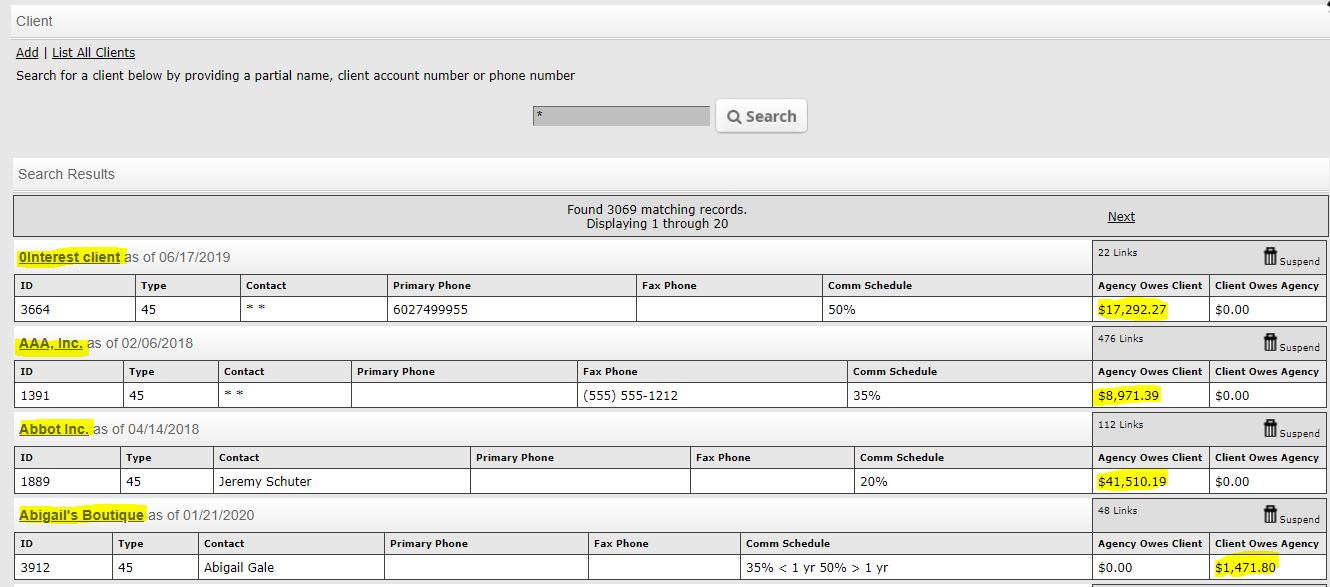
TIP: To easily see the agency/client balances go to Admin > Client > far right side of client list > Once you’ve reconciled the client transactions, it zeros out the client balance.