Mail Print
This area contains information on printing letters that have been generated and now reside in the mail print queue.
Mail Print main screen

Printing Lariat Letters
After choosing the Lariat link a list of Letters is available for printing.
This list contains the following columns:
Letter Description – Name of the letter to print
Number Pending – Total number of this letter waiting to print.
Percentage of Total – The percentage of the total pending letters
Lariat Mail Print detail screen
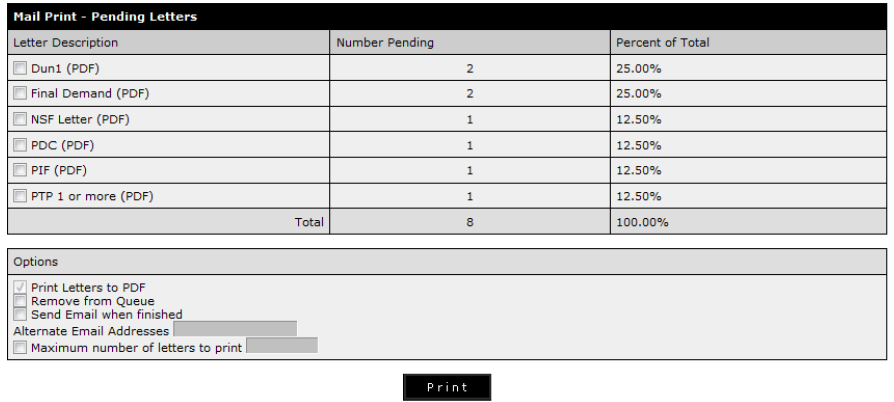
In order to print Lariat letters simply choose the Lariat link from the main letters screen to see the pending letters mail print screen, displayed above. Choose the checkbox next to the letters you would like to print and choose the Print button. After choosing the print button you will be taken to the job daemon status area. This will display the progress of the letter printing. Choosing the In Progress link will display details of the letter printing process.
Job Daemon screen

If any letters are unable to be generated a message will be displayed here. If this occurs go to the debtor and delete the letter then generate it again and open it up to be sure it will print.
Job Daemon letter printing details screen

Mail Print Options

There are several print options available:
Remove from Queue – will delete all letters that were chosen
Send Email when finished – sends the agent starting the job an email when it’s finished
Alternate Email Addresses – send an email to other email addresses
Maximum number of letters to print – if there is a large batch of letters to print enter a number to break it up into smaller batches of letters
Mail Print detail screen
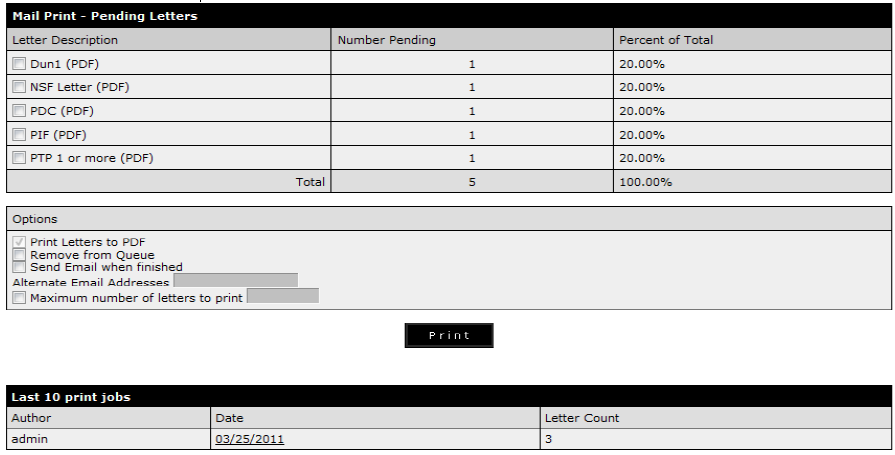
After the letters are generated a list of the last 10 print jobs will be displayed and can be opened or downloaded at a later date.
Author – agent submitting the job
Date – date the letter batch was generated, choose the date link to open the PDF or right mouse click and save it to a hard drive
Letter Count – number of letters in the batch
For a large batch of letters it’s best to put your mouse over the date link then right mouse click and save the file to a hard drive and give it a meaningful name such as Dun101012012.pdf. Then the file can be opened from your computer and printed immediately or a later date.
Other documents you might like to read in PDF format. Click below:
- Printing Your Letters